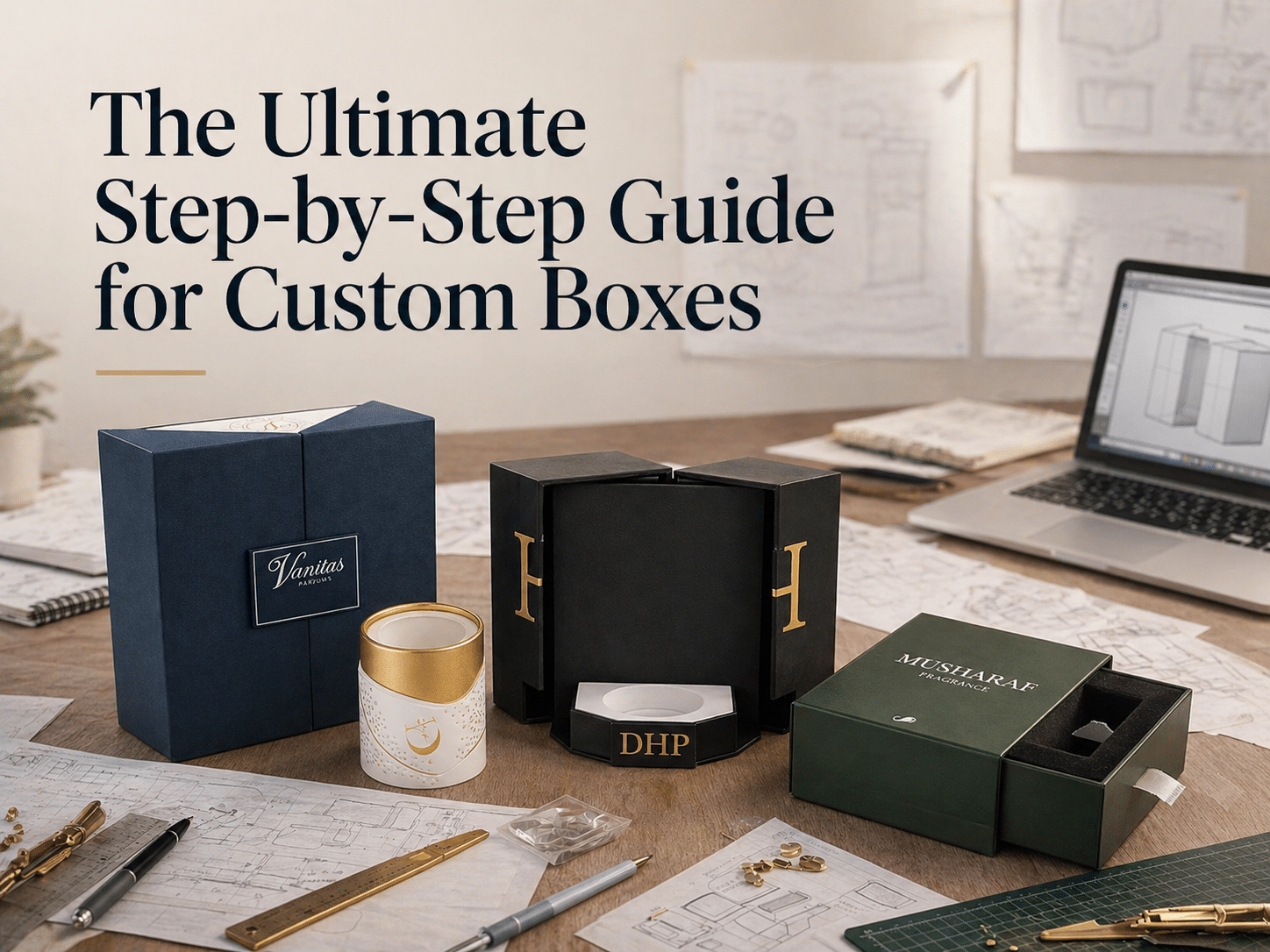
Custom packaging artwork setup marked a triumphant chapter for DHP Factory as we introduce our definitive, step-by-step guide for international beauty, cosmetics, and spirits brands. We are profoundly moved by the overwhelming enthusiasm from engineering and design connoisseurs for our technical papers. This guide is more than a tutorial; it is a comprehensive demonstration of how perfect file setup directly translates to professional, error-free production.
A flawless Custom Packaging Artwork Setup ensures printing accuracy and efficient production—minimizing revisions and manufacturing time.
This guide explains how to properly set up packaging artwork files, including dieline usage, bleed settings, safe area margins, and print-ready file export. Whether you are creating intricate rigid boxes or scalable mailer boxes, these steps are fundamental.

What Is a Packaging Dieline?And how to make the custom packaging artwork setup
A dieline is a template used in packaging design that shows where the box will be cut, folded, and glued. It acts as a blueprint for printing and production. The dieline typically includes cut lines, fold lines, bleed lines, and safety margins. When designing custom packaging, all artwork must be aligned according to the dieline to ensure the final printed box looks correct after cutting and folding.
Your manufacturer provides the initial packaging dieline, acting as a crucial first step for ensuring structural accuracy and print alignment.
Step 1 – Download the Dieline Template
Perfect setup starts with the correct template. **Always** use the official dieline template provided by your packaging manufacturer. The template ensures that your artwork fits the exact box dimensions and structural layout.
Key Rule: Do not modify the dieline structure, and keep the dieline on a separate locked layer in Adobe Illustrator.
Step 2 – Set Up Document Size and Bleed
The document size should match the dieline size exactly. You also need to add bleed around the artwork. Bleed is the extra area beyond the cut line that prevents white edges after trimming.
Standard bleed for packaging printing is typically 3mm (0.125 inch).
Step 3 – Understand Bleed, Trim Line and Safe Area
These three lines are critical in packaging artwork design:
- Bleed Line: Area that will be trimmed off after printing.
- Trim Line: Final cut line of the box.
- Safe Area: Area where important text and logos should stay.
Important elements like logos and text should be placed inside the safe area to prevent them from being cut off during production.
Step 4 – Place Artwork Correctly
Extend background colors and images to the bleed line. **Do not** stop artwork at the trim line. Keep all important content within the safe margin area and avoid placing text near fold lines.
This is especially important for mailer boxes, folding cartons, and rigid boxes where panels fold and overlap.
Step 5 – Convert Colors to CMYK
Packaging printing uses CMYK color mode, not RGB. If files are submitted in RGB, the printed colors may appear different from what you see on screen.
Always convert colors to CMYK before exporting print files.
Step 6 – Outline Fonts and Embed Images
Before exporting the final file:
- Convert all fonts to outlines: Turn text into vector shapes.
- Embed all images: Include external images directly in the file.
- Ensure image resolution is at least 300 DPI.
- Remove unused layers.
These steps prevent missing fonts or broken images during printing.
Step 7 – Export Print-Ready File
The most common print-ready file formats for custom packaging are:
- Adobe Illustrator (.AI)
- Print-ready PDF
- EPS
Make sure dielines remain on a separate layer and are set to overprint if required by the manufacturer.
Common Artwork Mistakes to Avoid
Avoiding these mistakes will reduce production revisions and speed up manufacturing time:
- No bleed added
- Text placed too close to cut lines
- RGB color mode
- Low resolution images
- Fonts not outlined
- Artwork not aligned with dieline
Artwork Checklist Before Sending Files
Before sending your files, check them against this list to ensure they meet printing requirements:
- Dieline template used
- 3mm bleed added
- Text inside safe area
- CMYK color mode
- Images 300 DPI
- Fonts outlined
- Images embedded
- Exported as AI or Print-ready PDF
Ready to Engineer Your Custom Sustainable Packaging?
Proper artwork setup is essential for producing high-quality custom packaging. Achieving the perfect balance between sustainability and luxury requires a manufacturing partner who understands both environmental standards and premium craftsmanship.
If you are not sure whether your artwork files are print-ready, the packaging experts at **DHP Factory** can help review your files and provide dieline templates for your custom box project.
Explore our custom packaging solutions, including mailer boxes and rigid boxes, to find the right packaging for your products.
Discuss Your Project